
Training
Attendance App Instructions for Sponsors & Independent Centers
Not enabled yet? If your sponsorship or independent center is not yet enabled for app use, contact CenterPilot to have the function turned on: ayoung [at] centerpilot.com.
Enable centers and users
Once your sponsorship is enabled to use the app, follow these steps to enable app use for a center:
- Go to Facility / Facility Information and select the center to enable from the drop-down list.
- Click on the Office Use Only tab.
- Check both of these boxes:
- Voice Attendance Function
- Text Attendance Function
- Click Save Facility Setting.
- Notice the # of Approved Users is currently zero (0).

Then enable users for the center
- Go to Admin / Manage Facility Users, scroll to the enabled facility, and click
EDIT next to the user you wish to enable. If more than one (or all) users will be
enabled, you will need to select them one by one.

- Check the boxes for both Voice Attendance Function and Text
Attendance Function, then click SAVE USER. (This example shows a center-admin-level
role, but assistant director, teacher, and cook level roles may also be enabled.)
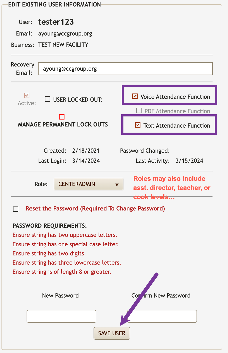
- On save, the two boxes are now checked for this user.

- If you choose, return to Facility Information / Office Use Only and verify that the
site is now approved for one (1) user.

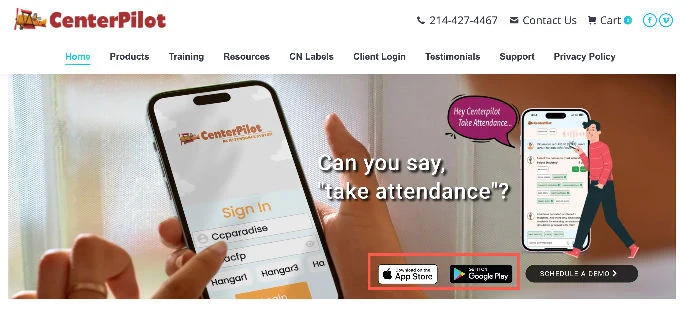
- Inform the center that they will need to download the app onto their phone. They may do so from
centerpilot.com, directly through the Apple App Store or Google Play, or from the Admin
menu when logged into their CenterPilot.net account.
- Center staff will log into the app using the same username and password as they use on the website. Please be sure they know which server to select (Hangar1, Hangar3 or Hangar4). Note that sponsor-level usernames will not work — only center-level usernames, and only those enabled by the sponsor.
Disable centers and users
- To discontinue paying for a center to use the app (and disable all users in the center), uncheck both boxes (Voice and Text Attendance Function) on the Facility Information / Office Use Only tab and SAVE.
- To lock out only a single user within a center (and continue usage for all other approved users), uncheck both boxes for that user in Admin / Manage Facility Users (EDIT) and SAVE for the single user only.
Last updated November 6, 2025.
← Back to all training · Questions? Call (214) 427-4467 — a real person answers.
Want a guided tour instead?
Schedule a free 30-minute demo and we’ll walk you through it live — your program, your questions.