
Transition Documents
Exporting Your Participant Data
Moving to CenterPilot? Export your participant list to Excel and we’ll import it for you — no retyping. Here’s the whole process, step by step:
- Log in to your current software.
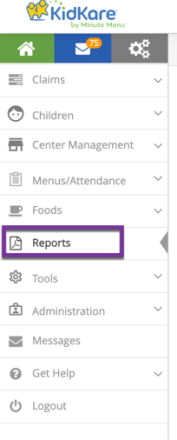
- From the menu on the left, select Reports, then select
Regular / Children / Child List Export.

- In the Filter for Centers grid that appears, be sure the Status drop-down menu
defaults to Active (nothing else needs to be changed in this grid), then click
Search.

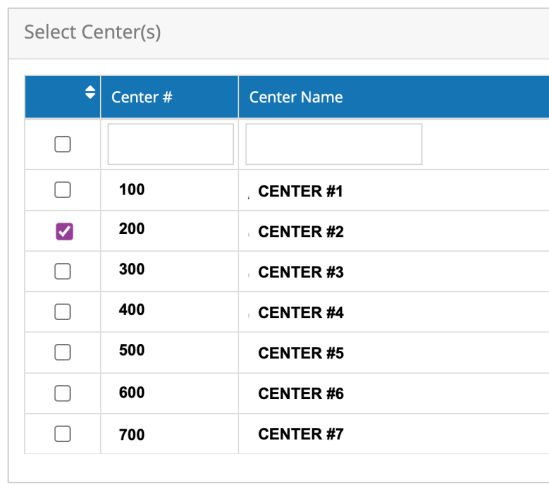
- In the Select Centers grid that appears, click in the box next to the appropriate
center to download.
- In the Child Export Filter grid that appears, be sure Status
Active and Pending are checked (nothing else needs to be changed in this grid),
then click Next.

- In the Select Fields to Export grid, all fields are selected by default. No changes
should be made to this grid. Click Export at bottom right.

- An Excel file will generate and show in the top right of your browser. Click on the file to open, and save it to your desktop with an appropriate name (like the name of the center or “Center Participant Exports”).
- Email the file to ayoung [at] centerpilot.com.
That’s it. CenterPilot uploads your participants for you — one center per file, named for the center, sent to ayoung [at] centerpilot.com.
← Back to resources · Questions? Call (214) 427-4467 — a real person answers.
Switching to CenterPilot?
Schedule a free 30-minute demo and we’ll walk you through the move live — your program, your questions.